Results page
The Results page provides the results from your queries in the Discovery Console for OT.
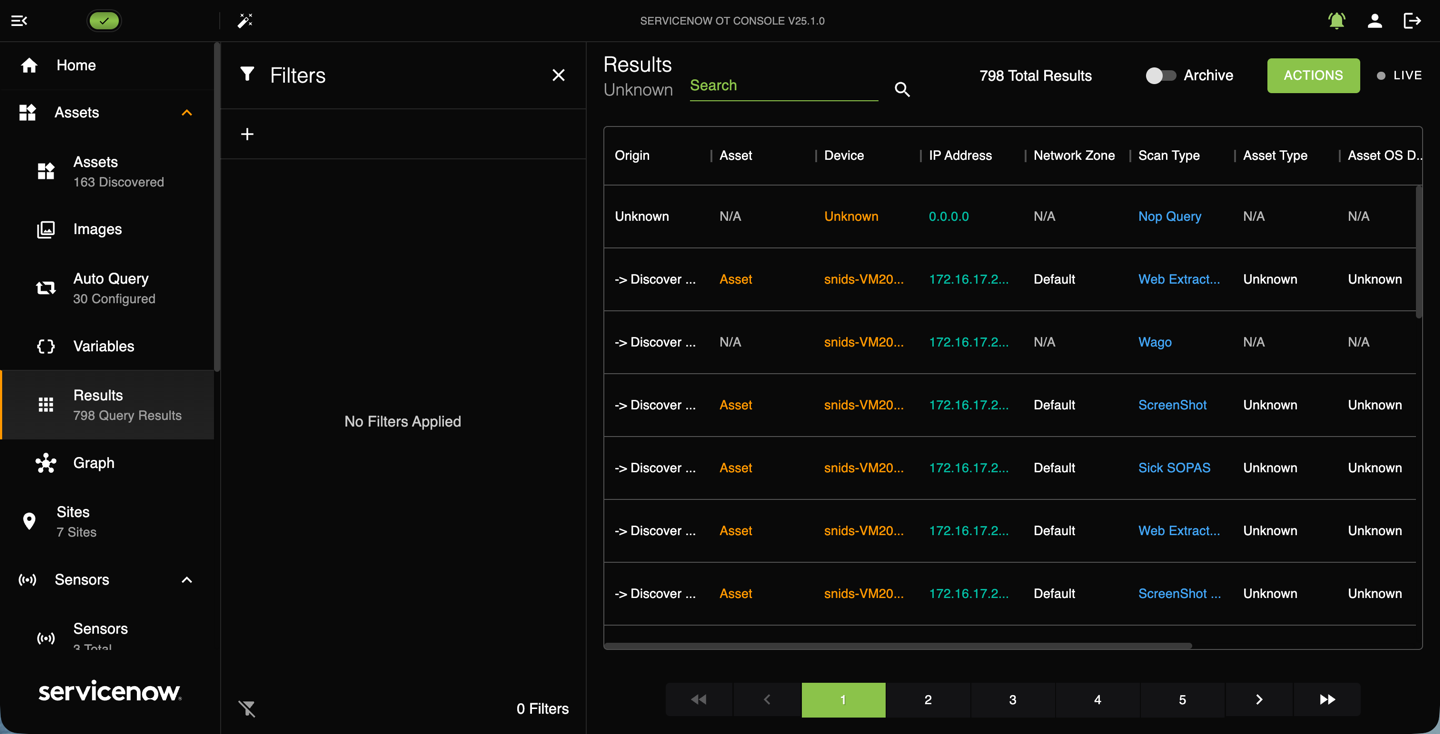
The Results page contains a list with all the scan results in the system. Each scan is displayed along with the associated Device, IP Address, Network Zone, Scan Type, Asset Type, Asset OS Details, Started On, and Log. The following
image shows an example of the Results page.
Note:
You can't export RAW XML results if your Console license is invalid (absent or expired).
To access the Results page, navigate to .
To find a specific scan, you can enter text into the Search bar on the top of the page under the Results heading.
Result filters
Use the filter panel to select which queries display in the results list. To filter the scan results, select the Add Filter icon  in the filter panel. Put your cursor in the filter field and select a filter from the pop-up menu.
in the filter panel. Put your cursor in the filter field and select a filter from the pop-up menu.See Filter results for more information.
Viewing results
On the Results page, you can view details of a result by selecting column entries.
- Asset
- Selecting an asset name in the Asset column opens the asset editing window. This view has three tabs, Details, Image, and Module On the Details tab you see Identification, Classification, Timeline, and other detailed sections. You can select Edit if you need to change any of these settings. If there is an image attached, it displays in the Detail and Images tabs. The Modules tab displays specific information about system modules, such as if the asset is a CPU or PLC, and the manufacturer's name.
- Appliance
- The Appliance column lists the name of the Sensor or Collector used during the query. Selecting the name from this column allows you to edit the query appliance's information and configuration.
- Log
- Select View in the Log column and the query log displays. You can copy the log for later use and for troubleshooting.
Action button
The Results page Action button lets you export the scan results. You can Export Results in JSON format or Export RAW in XML format.
The RAW data format is useful for debugging and verification.