Set an alert to monitor the application performance when the average response time of applications that run on an instance exceeds the configured threshold.
Before you begin
Role required: admin
Procedure
-
Navigate to
-
Log in to Instance Observer and navigate to .
-
Select an instance in the Instance list.
-
In the Search alerts field, enter Application monitoring.
-
Select the Application monitoring – Average Response Time alert card.
-
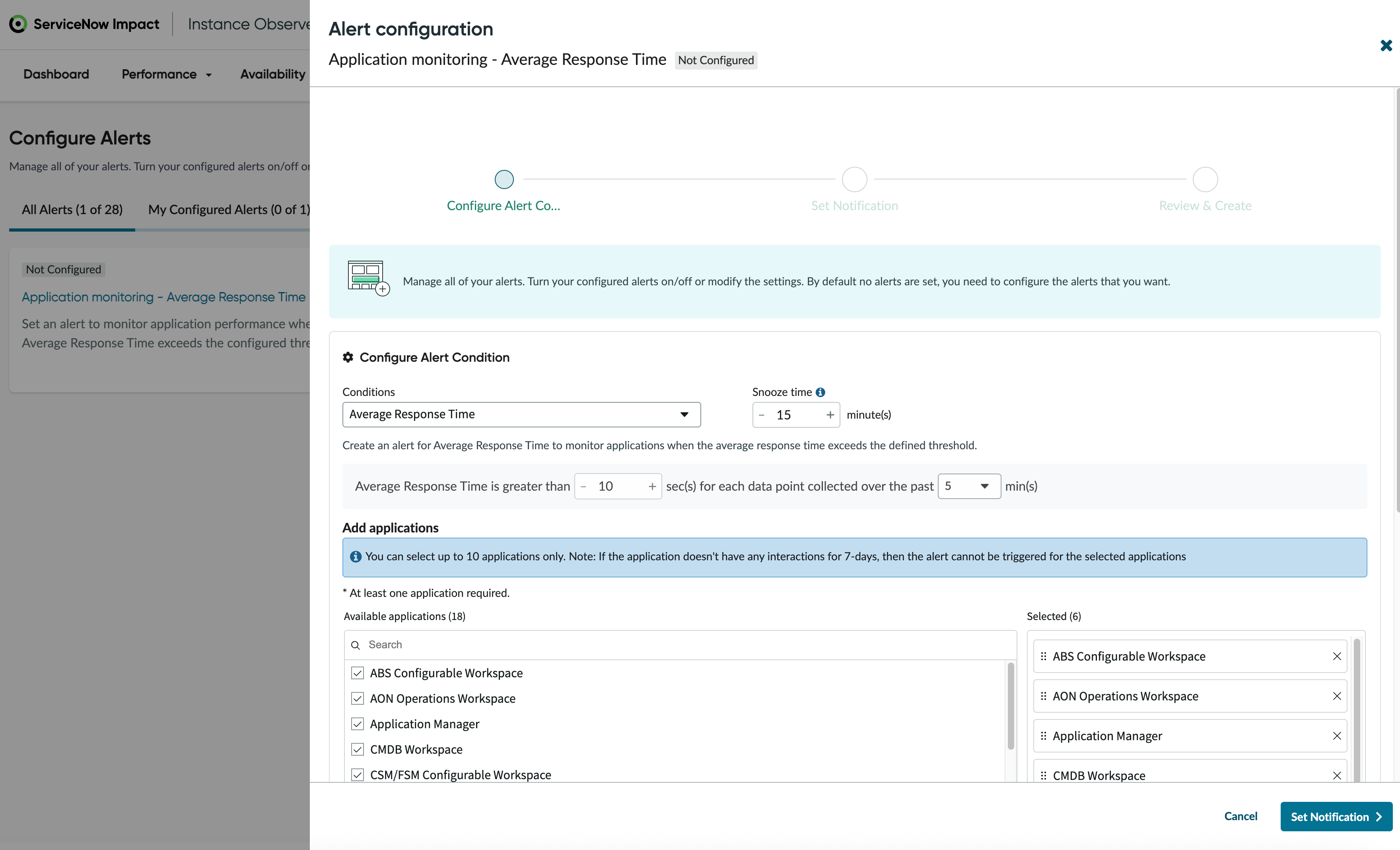
In the Edit alert configuration slide on page, set the conditions by setting up a Snooze time.
The minimum snooze time is 15 minutes.
-
Set the values in the Average Response Time in seconds for each data point collected over the past mins fields so that the alert is set when the response time exceeds the time frame for each data
point collected over the past minutes that you have configured.
-
In the Add applications section, search from the Available applications and select those applications for which you want to trigger the average response time alert.
All the selected applications appear in the Selected section. You can select a maximum of 10 applications and a minimum of one.
-
Select Simulate to get a list of simulated applications.
The list shows the applications with average response time collected from the data. Setting this alert On with selected applications enables you to monitor their performance.
-
Select Set Notification.