Performance settings enhances leading speeds and user engagement by displaying high-priority content first, making key components interactive sooner for a faster perceived performance.
Procedure
-
Navigate to .
-
Open an experience to work in or create an experience by selecting .
-
Create or open a page.
-
Add a component to your page.
You need a component on your page before you can adjust performance settings.
-
Select the menu icon.
-
Select Manage performance settings.
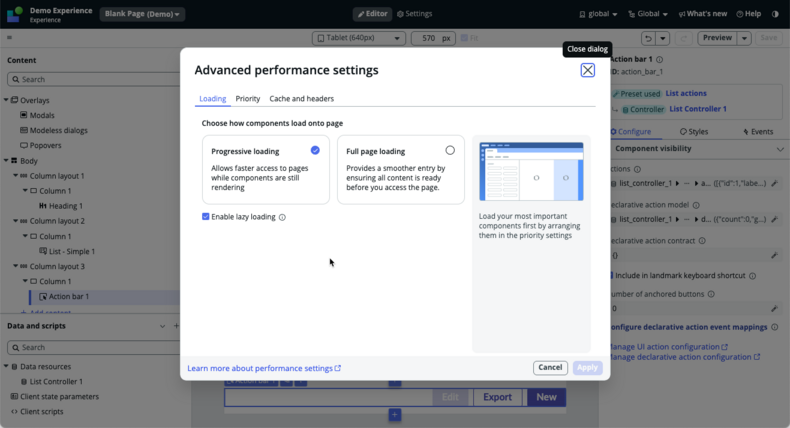
The
Advanced performance settings modal opens.
-
Select how components load onto a page.
-
Select the priority in which components load on a page.
-
Select the Priority tab.
-
Select the component you want to give priorty to.
-
Check Make high priority.
-
Select which data to cache when a page loads.
-
Select the Cache and headers tab.
-
Select a data resource from the list.
-
Check Activate data policy.
-
Select Apply.