Get notifications when jobs that are pending exceed your defined overdue thresholds by configuring the Long Pending Jobs alert. Set up conditions by job priority to take action on groups of jobs—such as
all discovery jobs or system cleanup jobs—in one go, rather than managing them individually.
Before you begin
Role required: admin
Procedure
-
Navigate to .
-
Log in to Instance Observer and navigate to .
-
In the Search field of the All Alerts tab that displays by default, enter long pending jobs.
-
Select Long Pending Jobs card.
-
Select + Add Condition button to open the Create a Condition pop-up.
-
Select Long Pending Jobs from the list in the Conditions field.
-
In the Snooze time field, set a time period in minutes before a repeat alert is triggered.
For example, a snooze time of 30 minutes means you won't receive a follow-up alert for the same condition until 30 minutes have passed.
-
In the Any job pending for more than field, set your tolerance threshold in minutes.
For example, enter 60 if you want to be alerted when any job has been pending for more than 60 minutes. Use the + and − controls to adjust the value.
-
Select the job priority you want to monitor in the Select a Priority field.
All jobs have a priority attribute assigned to them. Use this field to group and act on jobs by priority. For example, priority 110 for discovery jobs or priority 100 for test jobs.
-
Select Save.
You're not limited to a single condition. Select
+ Add Condition again to add conditions for additional priorities, each with its own threshold and snooze time.
For example, you can configure:
- Priority 100 — alert if any job is pending for more than 5 minutes.
- Priority 110 — alert if any job is pending for more than 80 minutes, with a 30-minute snooze.
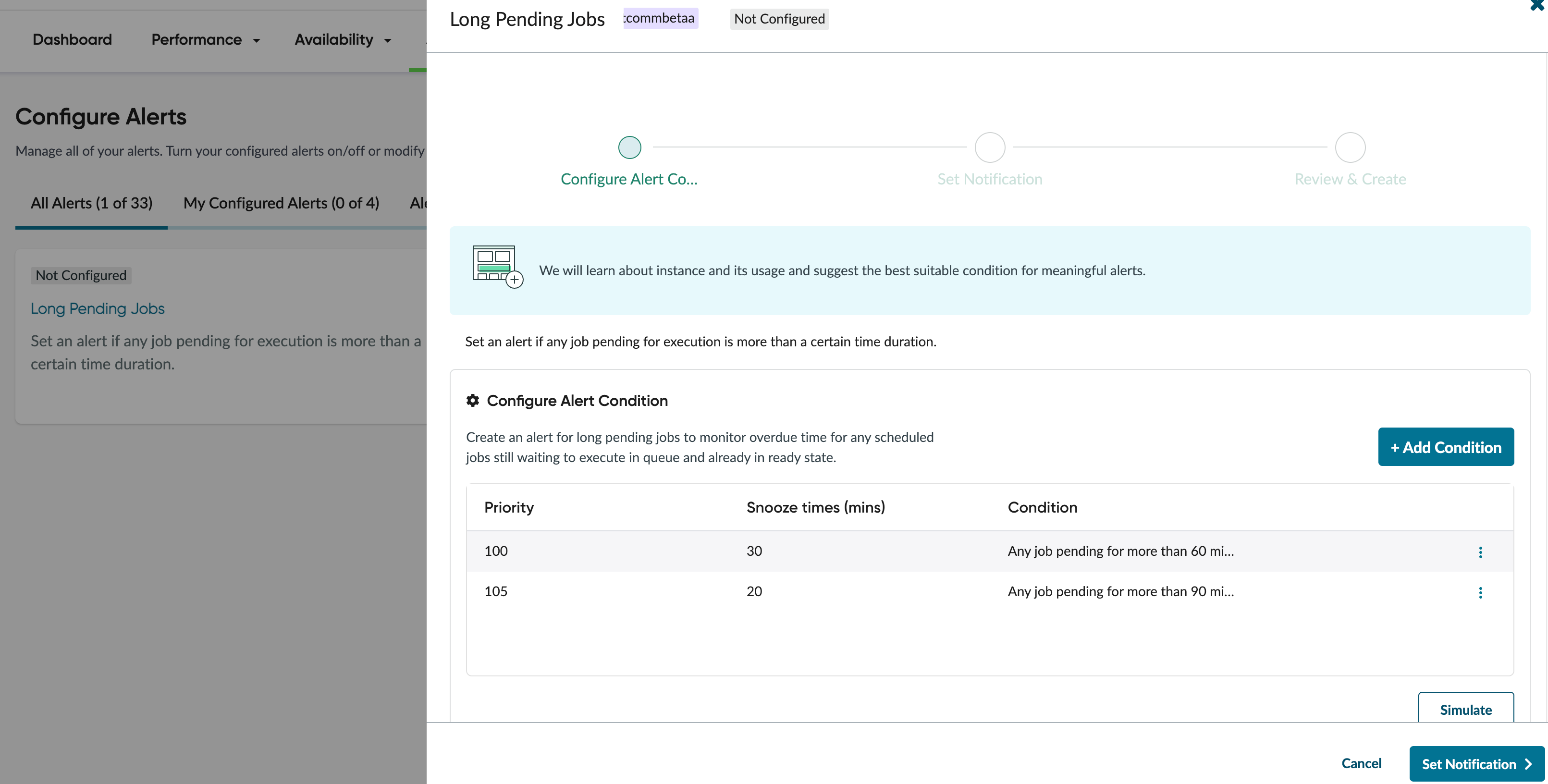
All configured conditions work on an OR basis. A notification is triggered when any one or more conditions are met.
-
Select Simulate to preview how many alerts your configured conditions would have generated over the past 7 days.
Use this option to validate your thresholds before going live with your alerts.
-
Select Set Notification button and in the Set Notification section, select your preferred notification rule.
Notifications can be delivered via Email, SMS, ServiceNow (webhook integration), or Third Party (external integrations).
-
Select Review & Create.
-
Select Create Alert.
The alert is active after you save. When a configured condition is met, you receive a notification that includes the job priority and the specific job names that breached the threshold. For example, Job X (Priority
100) has been pending for more than 100 minutes.