Platform Analytics dashboards
Dashboards are reusable canvasses containing data visualizations, filters, and other visual components.
To access dashboards in Platform Analytics, navigate to .
Note:
For information on the roles associated with Platform Analytics dashboards, see Platform Analytics roles.
For information about adding a Dashboards page to a configurable workspace, see Creating Platform Analytics pages in your own workspace.
Dashboards overview tiles
Each section of the Dashboards page shows up to 20 dashboard tiles at a time. You can filter the tiles on the Dashboards tab to show:
- Recent shows the most recent Next Experience dashboards that you've viewed. The tile shows when you last opened the dashboard.
- Bookmarked shows only your bookmarked dashboards. Bookmark dashboards that you have access to so that you can find them easily here. For more information about bookmarking dashboards, see Bookmark a Platform Analytics dashboard.
- Certified shows only the dashboards that an administrator has certified. For more information, see Certify a Platform Analytics dashboard.
- Created by me shows the dashboards that you’ve created.
- Shared with me shows dashboards that other users have shared with you.
- All shows all the dashboards that you have access to.
Dashboard tiles show the following information:
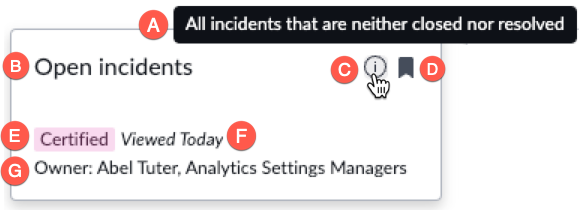
 A description, in a tooltip, if a description has been written
 The title of the dashboard
 An information icon, present only if a description has been written for the dashboard, which opens the description tooltip
  A bookmark icon, which is solid if the dashboard is bookmarked and clear if it is not
 A certification badge, if the dashboard is certified
 In the Recents view only, the date when the dashboard was last viewed
 , The names of the dashboard owners, both users and groups