Create a cohort

  • Release version: Washingtondc
  • Updated November 13, 2024
  • 2 minutes to read
  • Create an analysis of users who complete a predetermined sequence of actions so you can track conversion rates at each step.

    This video shows you how to create and use cohorts.

    Before you begin

    Role required: Users with the analytics_viewer, portal_analytics_viewer, mobile_analytics_viewer, core_ui_analytics_viewer, now_experience_analytics_viewer roles can create, edit and delete cohorts for the applications they have access to.

    About this task

    A cohort enables you to understand how often your users return to the app and perform certain actions in a given time frame. It analyzes a sequence of actions performed by an aggregated group of users within a specified time frame. A cohort report thus provides you information on how one in-app action relates to another. You can see measurement of how much time passes between a sequence of actions, and trends in user behavior and engagement over periods of time.
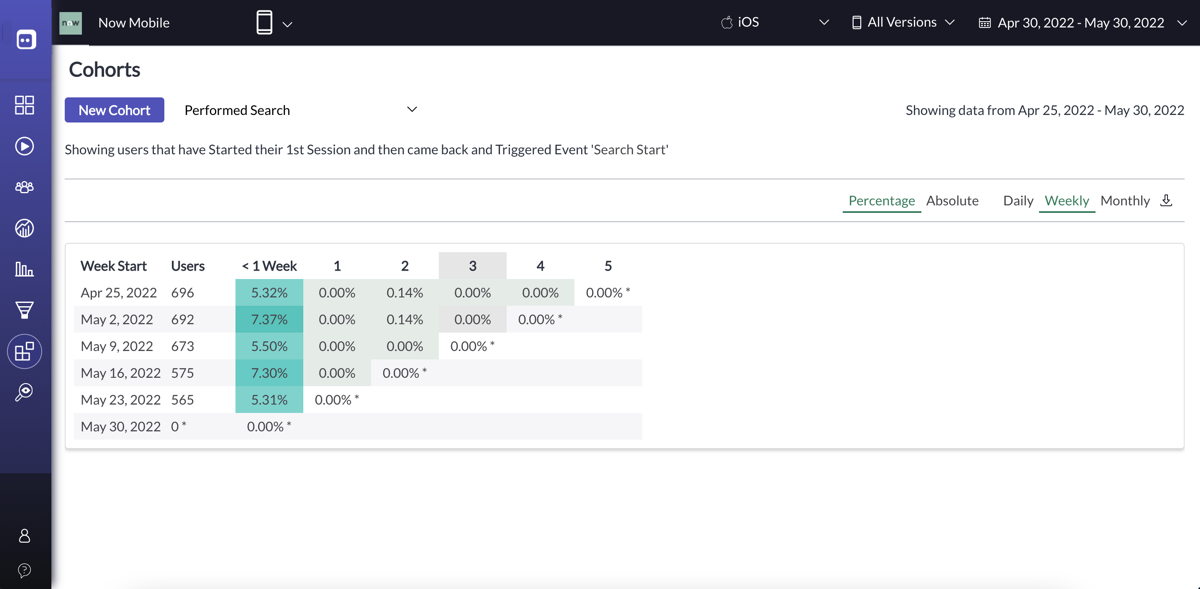
    Cohort page.

    Procedure

    1. From the Dashboard, navigate to Cohorts, and click Create Your First Cohort or New Cohort.
    2. Enter a name for the relevant process you want to measure.New cohort dialog.
    3. Select the timeframe for sessions you want to include.
      OptionDescription
      Now

      The report begins collecting data from the second the report saves.

      1 Week Ago

      Reports on data seven days prior to the current date. Includes data generated at 12AM GMT of the date.

      1 Month Ago

      Reports on data 30 days prior to the current date. Includes data generated at 12AM GMT of the date.

      3 Months Ago

      Reports on data 90 days prior to the current date. Includes data generated at 12AM GMT of the date.

      Original Date

      This option is available when editing an existing report. Reports on data from the original date of the report.

    4. Click Next.
    5. Select the first action from the options that will define the cohort.
      Users who perform the defined action are grouped in the rows of the cohort.
    • Visited a Screen
    • Triggered an Event
    • Performed an Action
    • Started any Session
    • Started their 1st Session
    1. Click Match by properties to select and enter a property value to match the action with.
    2. Select the second action that will define the cohort, and a screen, event, or action as applicable.
    3. Click Finish.

    What to do next

    View the cohort to see how many of the users who performed the first defined action returned to perform the second action.
    Note:
    If data shown in the cohort analysis is not final, a note indicates that retroactive data is still being processed. Refresh the screen to see the report with final data.