As you write and save code, the Scan Engine detects violations in real-time and displays findings inline. You can then generate an AI-suggested fix before committing your changes.
Before you begin
Real-time prevention monitoring must be enabled on the Scan Engine properties page.
Supported record types include script actions, business rules, client scripts, catalog client scripts, email scripts, script includes, transform scripts, UI scripts, and scheduled scripts.
Role required: sn_impact_gen_ai_fix_user
About this task
Real-time prevention monitoring detects coding violations the moment you save a record. This allows you to fix issues immediately, preventing technical debt before your code is promoted to a higher environment. The Scan Engine checks your code against active scan definitions and displays findings inline along with AI-suggested fixes you can apply.
Procedure
-
Open your script record and make code changes as you normally would.
-
Select Save.
- The Scan Engine validates your code against active scan definitions. If no violations are found, your record saves.
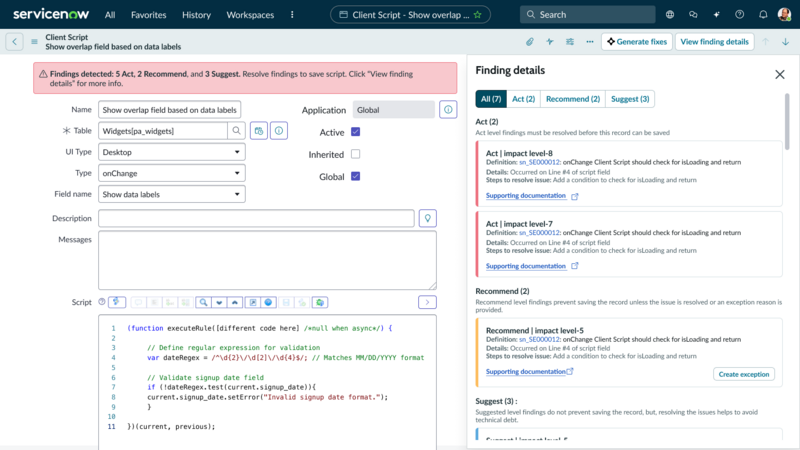
- If violations are detected, a message displays and a findings panel opens on the right side of your screen. The findings are organized into tabs by enforcement level.
-
Review the findings displayed in the panel with the following information.
Table 1. Findings panel fields
| Field |
Description |
| Severity label |
Enforcement level and impact level of the finding. For example, Act | impact level-8. |
| Definition |
Definition ID and description of the violation detected. A link to the violation is included. |
| Details |
Location where the violation was detected, including the line number and field name. |
| Steps to resolve issue |
Recommended actions to fix the violation. |
| Supporting documentation |
Link to knowledge base articles or documentation explaining the general guidelines for t0.his finding. |
|
|
The findings panel organizes violations into tabs by enforcement level:
- Act: Must be resolved before the record can be saved.
- Recommend: Prevent saving the record unless the issue is resolved or an exception reason is provided.
- Suggest: Doesn't prevent saving the record, but resolving the issues helps avoid technical debt.
-
Choose one of the actions to resolve each finding.
| Option |
Description |
| Manually Fix |
Review the Steps to resolve issue guidance and fix the code yourself in the script editor and save again to verify the issue is resolved. |
| Generate an AI-Suggested Fix |
Select Generate fixes to have AI automatically analyze your code and generate a correction. |
| View finding details |
Opens the code comparison window to analyze the suggested fixes more closely. |
| Submit an Exception (Recommend level findings only) |
If you believe the finding is a false positive or the code has a valid business reason for the violation, select Create exception on the specific entry. |
-
If you chose to generate an AI-suggested fix, review the code comparison that appears.
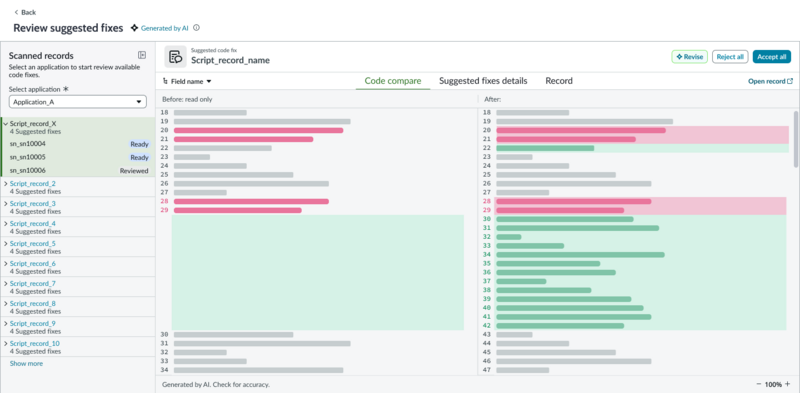
Your original code displays on the left and the suggested changes on the right. Changes are color-coded, green indicates added code and pink indicates removed code. The script editor is read-only until you accept
or reject the fix.
-
Decide how to proceed with the AI-suggested fix.
| Option |
Description |
| Accept the Fix |
- Select Accept to apply the AI-suggested changes.
- Otto updates your code and the change appears in your active update set.
- A full audit trail is recorded, including who accepted the fix and when.
|
| Reject the Fix |
- Select Reject.
- The code editor becomes editable again and you can manually fix the issue.
- No changes are applied.
|
| Revise the Fix |
- Describe the change you want in the revision prompt.
- For example, type "Make it simpler with asynchronous callback."
- Otto regenerates the fix based on your feedback and you review again.
|
-
After accepting a fix, verify the change is correct by reviewing the finding record and your updated code.
The finding is marked as resolved. If multiple findings exist, the findings panel remains visible until all are addressed or dismissed. You can then save the record normally.
Result
Your code violation is fixed and the change is saved in your active update set. The finding no longer displays when you save the record again.
Note: Understanding AI Finding Details: If you want a less technical explanation of why
the violation was flagged and how the fix resolves it, select View AI Finding Details in the findings panel. This opens the AI panel with an explanation of the guideline, why your code violates it, what
changed in the fix, and why the fix is correct.