Install plugins for ServiceNow Otto, to enable generative AI on your instance.
Before you begin
Role required: sn_nowassist_admin.nsa_admin
Follow these instructions to get started with AI Admin Hub:
- To get started with generative AI products, you must install at least one application on your instance.
- License any ServiceNow Otto software from the ServiceNow Store and install it through the Application Manager to access AI Admin Hub.
- The AI Admin Hub console guides your implementation, starting with installation.
- Check out the Now Assist Journey Checklist for more information.
About this task
Deactivate switch in
AI Admin HubNote, that certain out-of-box skills are automatically enabled by default with plugin activation. You can turn off the toggle switch before installing the plugin to disable the default 'on'
setting. With this feature you can prevent skills configured for default activation from auto-activating when installed or updated.
Explore 'View default-active skills' to find the list of skills currently
activated by default. You can review them, activate or deactivate them individually. Hidden skills are displayed and accessible within the Additional Details section.
Generative AI applications often function interdependently. Now Assist Suites help reduce runtime errors and update issues by bundling compatible versions of generative AI applications together during installation and updates.
For more information about how generative AI product Suites work, see Now Assist suite versions in the Application Manager.
For details about available Suites and their compatibility with ServiceNow AI Platform versions, see Now Assist Suite release notes.
Procedure
-
Navigate to .
If you’re already in AI Admin Hub, select the Settings tab.
-
On the Settings page, select Plugins.
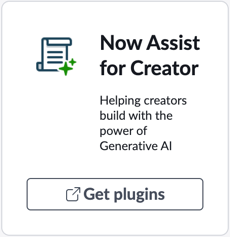
Plugins appear as cards. Review all plugins for ServiceNow Otto, on the Available for you tab. Plugins that you have already installed appear on the Installed tab.
- Optional:
If you don't already have a license for the plugin, request a license from the ServiceNow® Store.
-
Select Get plugins on the card for the plugin that you want to install.
-
In the confirmation window, select Install Plugin to open the ServiceNow Store page for the plugin in a new browser tab.
-
Request the license.
-
Navigate to .
-
Find and select the Now Assist application you want to install.
-
Select Install.
-
In the Select suite version drop-down menu, select a Now Assist Suite version.
The available suite versions are compatible with your instance. If you have other generative AI applications already installed on your instance, they might require update for suite compatibility. For more information
about Suite compatibility, see Now Assist suite versions in the Application Manager.
If you haven't installed a Now Assist Suite version yet, you have the option to choose none in the version selector. This option enables you to begin using Now Assist Suites at a time that works best for your organization.
- Optional:
If you have available application customizations, use the Customized ver. drop-down menu to select which customization to use.
Your customizations might not be compatible with a new application version. Update the application in a non-production instance, then make any necessary changes to your customization and validate compatibility before
making updates in production instances. For more information about managing customizations, see
Manage customizations to applications.
- Optional:
Include demo data if it's desired and available.
-
Select the option to install demo data next to each Now Assist application you want demo data for.
The option to install demo data isn't available for all applications.
-
Turn on the Load demo data for selected apps toggle switch.
-
Select Continue to review the installation details.
If any applications display "Installation blocked," it means that application version isn't licensed yet. Either uninstall the application or license the required version.
-
Install the application now or schedule installation for a later time.
| Installation option | Procedure |
|---|
| Install now |
- Leave the default option to Install now selected.
- Select Install.
|
| Install later |
- Select the option to Install later.
- Enter a start date and start time.
- Select Schedule.
|
-
Return to the AI Admin Hub console.
-
In the dialog box, select Refresh.
-
Either close the dialog box to review all of your plugins or select View all (Plugin) Assists and Skills to review the features of your new plugin.
Result
Your plugin is successfully installed.
If you encounter issues installing or updating applications, see this knowledge article for steps that may address your issue. Otherwise, you can make a Support case.