Configure a customized empty state for search results to provide users with
information and actions to help improve their search criteria. This information will replace
the default empty state that is provided for search results.
Before you begin
You should have an empty state for the following situations:
- When a search for a term does not produce any results.
- When a search using a navigation tab does not produce any results.
For more information, see Configure an empty state.
Role required: admin
Procedure
-
Navigate to .
The Mobile App Builder opens in a new browser tab and
displays the application scope selection screen.
-
Search for the application scope you are working in and then select the name of
the application scope.
The Mobile App Builder categories home screen
displays.
-
Create an empty state record, then use the bridge to Mobile Card Builder (MCB) to configure the card that is referenced by the search config:
- Select All mobile records from the menu.
- From the Record type drop-down menu, select Empty state [sys_sg_empty_state] and then select New.
- In the Empty State form, fill in the fields.
| Field |
Value |
| Name |
Title for the record. |
| Description |
Optional description of the record. |
| Active |
Option for enabling the display of the card setup within the empty state. Select the toggle to make the empty state record active. |
-
In the Card section of the Empty State form, select New.
You are taken to Mobile Card Builder where you can select and configure the card for the empty state.
-
On the Choose a card template page, search for a card template to use.
Note: Any card template can be used, including custom templates. The default template for empty states is used here to demonstrate the configuration steps.
-
Select the Default Empty State Template and then select Use this card template.
-
In the Card properties dialog box, enter:
- Name for the card.
- Short description that will help you identify the card.
- Leave the Table field set to -- None --.
- Select Save.
-
In the card template select the Image placeholder on the card, and then perform the following configurations:
- Turn off the Use mapped field toggle.
- Select Choose image, and then select an image from your file system.
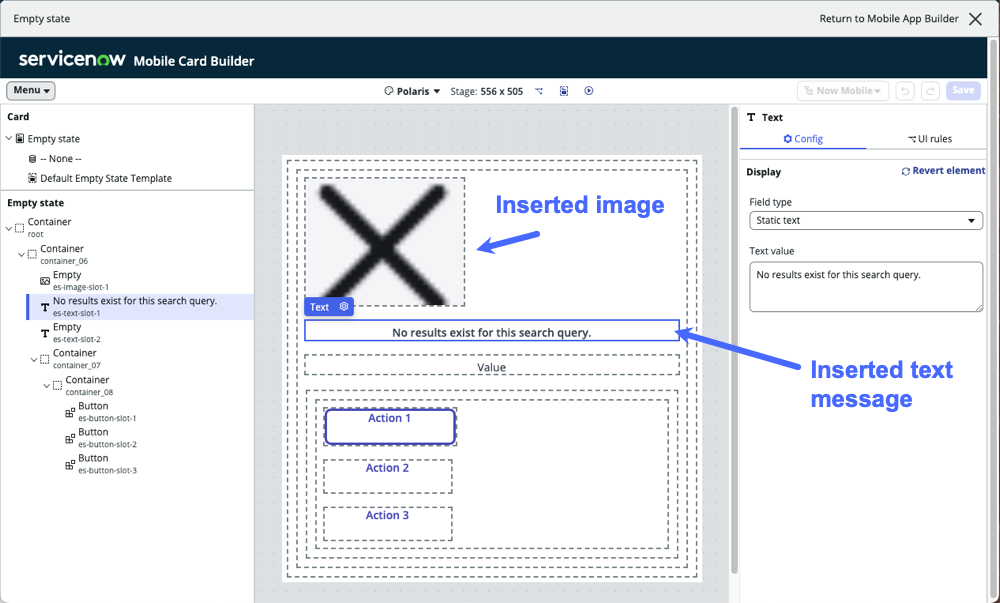
The selected image is inserted in your empty state card.
-
Select the Value placeholder on the card, and then perform the following configurations:
- From the Field type drop-down list, select Static text.
- In the Text value box, enter the message you want to display on the screen if a search does not return any results.
- Select Save.
The mobile card with the image and static text might look like this:
-
Select the Action placeholder on the card, which adds a button to the screen, and then perform the following configurations:
- Enter a Label for the button.
- Under Actions in the menu on the side of the screen, select a Function.
- Under Button appearance, select the colors for your background, text, and borders.
-
Select Save.
-
Select the X next to Return to Mobile App Builder.
-
In Mobile App Builder, select Save.