Create a related list using your parametrized data item. This list appears for your users when they select the related list tab on their form screen.
Before you begin
Role required: admin
Procedure
-
Navigate to .
The Mobile App Builder appears in a new browser tab and displays the application scope selection screen.
-
Search for the application scope you're working in and then select the name of the application scope.
The Mobile App Builder categories home screen displays.
-
From the menu on the left side, select Screens to display the data items for the scope.
-
Click the New button.
-
Choose the List card from the Create a screen window.
-
Use the Properties section to give your list a name and description.
-
Select an icon by clicking the Choose button in the Icon section.
-
Click the Save button in the upper right corner to save the list screen.
-
In the Screen segments section, click New to create a section.
A new New screen segment panel displays.
-
In the Streams section, click New to create a stream.
A new New list stream panel displays.
-
In the Data item section, click Choose, and select the parametrized data item you created in Create a parametrized data item for your related list.
-
Return to the list screen record by selecting it in the configuration tree.
This record should be the top level item on your configuration tree.
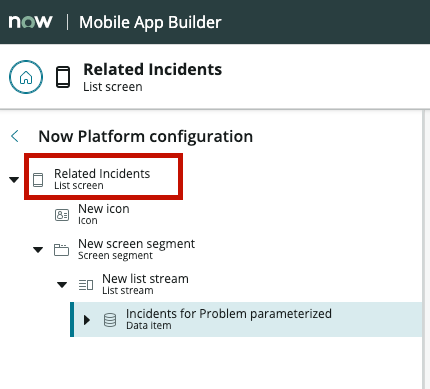
-
In the UI Parameters section, click New.
Creating a UI parameter creates a link between the data item and the list screen.
-
In the New UI parameter screen, create a name and description for your parameter.
Leave the remaining fields at their default values.
-
In the Screen data parameter mapping section, click the Choose button.
-
Find and select the data parameter from your data item.
If you need to remember the name of this parameter, you can see it in the Parameters section of your data item record.
-
Click Save to save your list record.
Example
Continuing the preceding example, you create an list screen to display incidents for your problem record. This list screen uses the data item created in the previous steps. This list screen needs a parameter to contain the
problem record from your problem record screen. To make it easy to identify, the parameter name is also named Problem. In the IU Parameter Mapping section, you create a mapping between the data item
parameter and the screen parameter, so the value can pass between them.