To use Power Virtual Agents with Virtual Agent
Bot Interconnect, you must create a JavaScript function in Microsoft Azure using the sample code files in Bot Interconnect.
Before you begin
You will need a Microsoft Azure account.
Role required: admin
Procedure
-
Sign into Microsoft Azure and create a JavaScript
function.
This involves configuring your environment and creating a local project. Refer
to the
Microsoft documentation
for details.
-
Go to Create an Azure Function for Microsoft Power Virtual Agents as Secondary bot with ServiceNow Bot Interconnect setup (KB1112368), and then do the following:
-
Copy the code in the attached index.txt file into the index.js file in your Azure project.
-
Copy the code in the attached function.txt file into the function.json file in your Azure project.
-
Save both files.
-
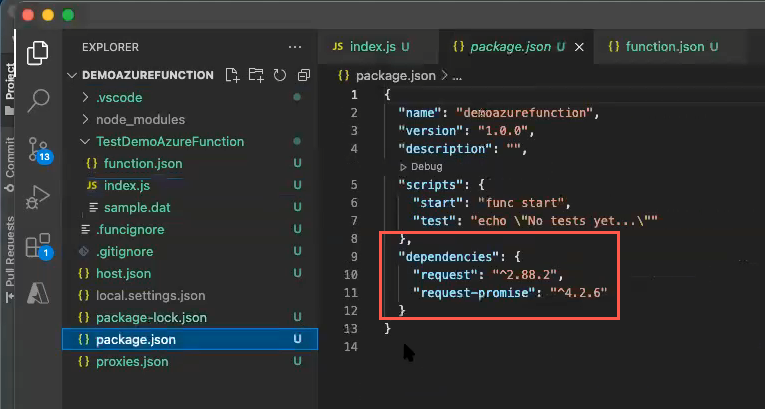
Install the request-promise libraries.
-
In a command line window, change directories to the folder where you
created the Azure project.
For example, enter cd DemoAzureFunction.
-
At the prompt, enter: npm install --save
request
-
At the prompt, enter: npm install --save
request-promise
The dependencies are added to the package.json file in
your project.
-
Deploy the project to Azure as described in the Microsoft
documentation.
-
From the Azure portal, navigate to All Resources.
-
Select the name of the function app that you've created.
-
On the Overview page, select the function you've created in the Functions tab, and copy the function URL from the Get function URL option.
The Azure function URL will be used as the secondary bot endpoint in your ServiceNow instance.