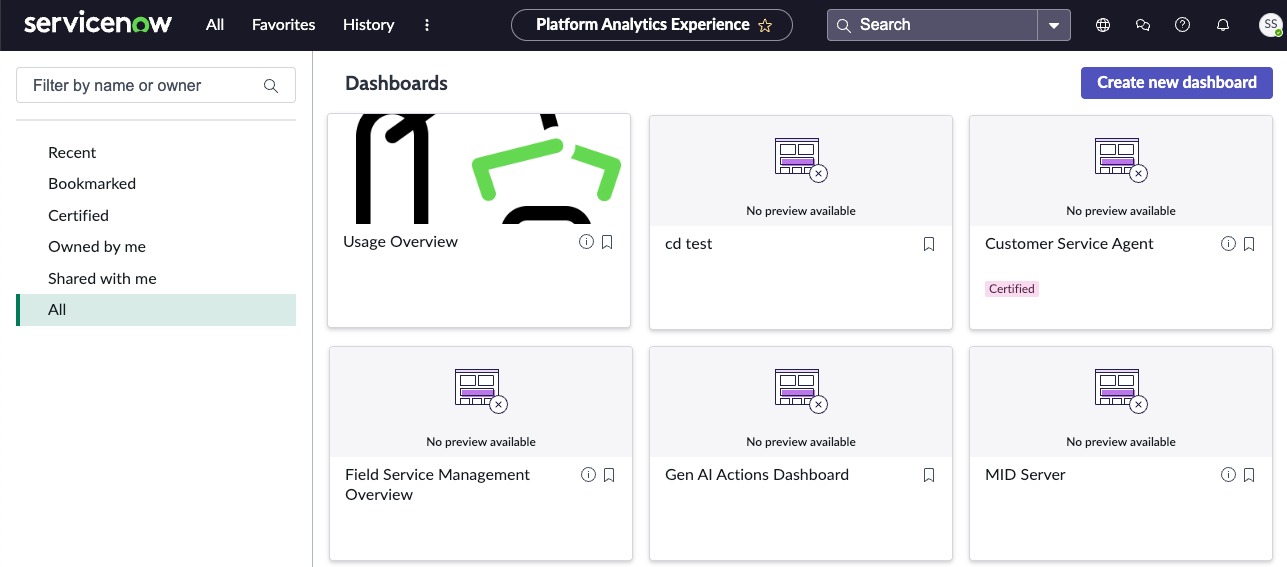
Add images to Platform Analytics dashboard cards
Distinguish the cards in the dashboard overview with uploaded images.
Before you begin
Role required: ui_builder_admin to enable the image preview; dashboard_admin to add the image.
About this task
Add an image to the cards in the Platform Analytics dashboard overview.
Procedure
-
Enable the image preview in the Dashboard overview component.
-
In the component configuration, select Display image preview.
-
In the component configuration, select Display image preview.
-
Select the Preview record icon (
 ) next to the dashboard that you want to add an image to.
-
Choose an image file and select OK.
The image appears on the form for the dashboard.
Result
The image appears on the dashboard's card in the dashboard overview.