Configure custom start and end conditions for your table configuration to define which
part of the process should be included in the Process Mining project
and made available for analysis.
Before you begin
Role required: sn_process_optimization_analyst, sn_process_optimization_power_user,
or sn_process_optimization_admin
Procedure
-
Go to the Advanced Condition tab of your table configuration record.
-
Select Crop from the Condition type list.
Crop conditions allow you to configure a specific start and end condition from your process map, such as, specifying resolved as your process end state instead of closed. Another example is only discovering process from
the first occurrence of the New state until the last occurrence of Resolved, thus leaving the Closed state out of the analysis.
-
Select the plus symbol next to the Start condition field.
-
In the Create new process start condition form, fill in the fields.
-
Select Submit to save the condition.
-
To create an end condition, select the plus symbol next to the End condition field.
-
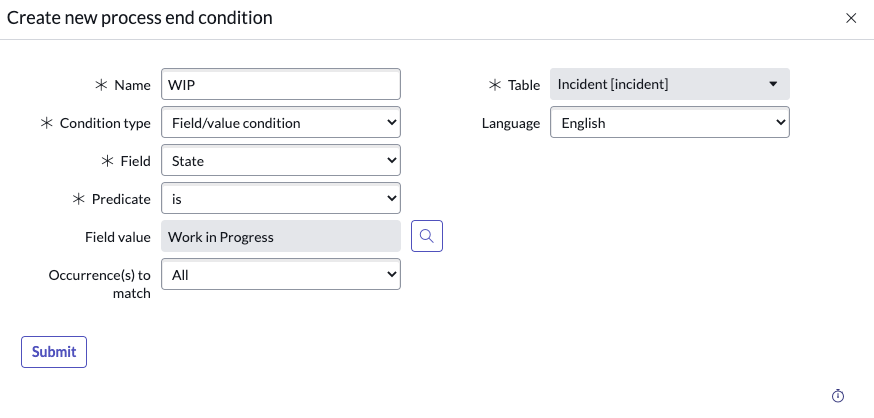
In the Create new process end condition form, fill in the fields.
Note: The fields and descriptions are identical to those for the Create a new process start condition form.
-
Select Submit to save the condition.
A configured process condition
In this example, a process end condition is configured when an incident record enters the Work in progress state. Because the Occurrence(s) to match field is set to First
only, the condition only triggers the first time a record's state changes to Work in progress.