Analyze your campaign to ensure that your messaging is effective and that you are targeting the correct audience when you use campaign success goals. You can also check your campaign's progress and evaluate how successful your
campaign is.
Campaigns uses Content Analytics to collect data on user interactions and generate visualizations that help you determine the effectiveness of your campaign. View the data visualizations for published campaigns in the
Campaign overview and Campaign analytics dashboards.
Nota: Content Analytics is a separate plugin that must be installed and configured. For installation information, see
Activate Content Analytics.
Evaluating a campaign
Since many factors can impact how effective a campaign is, define the factors that matter to your campaign. For example, you can configure the Content Experiences:
Update Campaign Audience scheduled job to continually reevaluate the audience for your campaign and remove employees that no longer satisfy the criteria that you define. With this process, you can develop campaign targets to
help you verify if your intended audience is accurate.
You can define the following factors to make your campaign more effective:
- Audience
- An audience is a group of users who meet a set of conditions. You define an audience at the campaign level and refine that audience at the content level to control who sees content.
- After the campaign starts, the Content Experiences: Update Campaign Audience scheduled job adds or removes users when they meet or no longer meet the conditions. For example, a campaign targets employees of the
Engineering department. The scheduled job periodically re-evaluates the audience, adding new hires to the audience and removing users who transfer to another department or leave the company. The campaign content is
displayed only to the current employees in the Engineering department.
- Alternatively, you can manually modify the audience after your campaign starts. For more information, see Editing a published campaign.
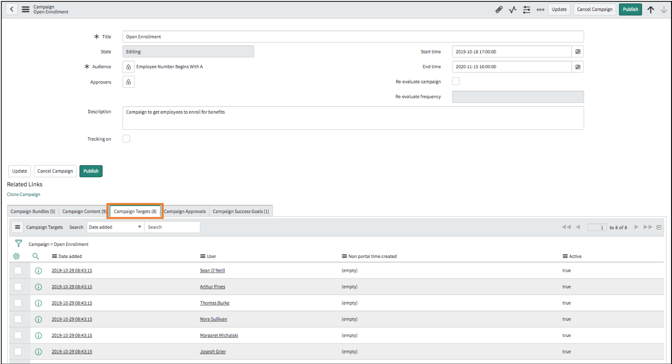
- Campaign targets appear after a campaign is published and the Content Experiences: Update Campaign Audience scheduled job runs. You can view a list of the users in the target audience by opening a campaign and navigating
to the Campaign Targets tab. The campaign target list contains the date the user was added, the user, the campaign the user is assigned, and if the campaign is active.
- Click the Campaign Targets tab to view the users that you are targeting for your campaign.
- Trigger configuration
- The trigger configurations determine when the content in a stage becomes available to your employees. The configurations include the trigger type and date offset.
- When a campaign starts and employees are added, you can reevaluate the trigger type and dates of a campaign stage. By continually reevaluating the trigger types and dates, you can ensure that the correct audience receives
the correct campaign content.
- Campaign success goals
- Use campaign success goals to set a desired outcome for the campaign, for example driving employees to enroll in benefits or reducing the number of employee-created inquiry cases. If you aren't seeing the results that you
expected, you can modify the campaign.
Nota: You can create campaign success goals only when the state of a campaign is in Draft or Editing.
-
Here are some ways that you can utilize campaign success goals:
- Determine if your campaign is successfully driving a specific type of action, like employees signing up for benefits. For example, your company has 2,000 employees and 1,500 have already signed up for payroll
direct deposit. You create a campaign that is directed at the 500 employees who have not signed up for payroll direct deposit yet. If your campaign is in the last stage and few employees have signed up, you can
add another stage to the campaign with additional content encouraging employees to sign up.
- Compare metrics from your campaign against a previous campaign. For example, the open enrollment campaign last year included a webinar with a question-and-answer session, whereas this year the campaign has an
informational video instead. You can review the difference in enrollment rates to determine if the content change had an impact.
- See if your campaign is successfully reducing a type of action. For example, you create a campaign that provides videos, knowledge articles, and links to inform employees about a program. In the weeks after the
campaign ends, you compare the number of inquiry cases created before the campaign started to the number of cases created after.
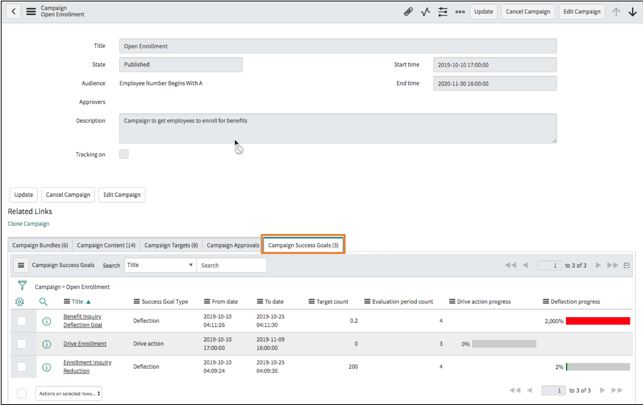
Click the Campaign Success Goals tab to view the progress of a campaign. Depending on the type of success goal that you create, you can see a progress chart under Drive action progress or
Deflection progress.
You can also select the campaign success goal to view the record.